
This article looks at how to edit and manage Mentimeter activities created within Canvas.
Editing content in Mentimeter
To access the Mentimeter interface, open the link you created in Canvas. (If you need to setup an activity see Setting up Mentimeter in Canvas).
Making Mentimeter visible to students in Canvas
When you create a Mentimeter link via Assignments it will be unpublished by default. The assignment will need to be published for students to access it.
The Type of Menti (which can be accessed via Mentimeter settings) also affects how a participant engages with the activity once it is published in Canvas.
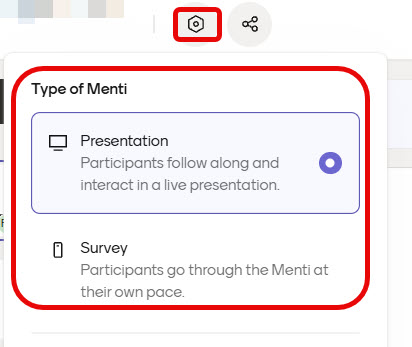
For survey Mentimeter activities students can engage and progress immediately through content once the Canvas assignment link is published, regardless of whether the presenter has ‘started the activity in Mentimeter’. Surveys may suit asynchronous low stakes activities or informal self paced learning in a synchronous session.
For presentation activities (default setting), there is a slight oddity in that students can engage with the first slide of the presentation, as soon as the Canvas assignment link is published. For example, participants can add likes to the first text slide or submit answers for the first interactive slide, regardless of whether the presenter has chosen to ‘start the presentation’ in Mentimeter. However, students must then wait for the presenter to ‘start the presentation’ and move slides forward to progress further. Therefore, we recommend staff start the presentation in Mentimeter and then only publish the assignment when ready for students to begin the activity. Presentations may suit a synchronous session where staff wish to control progress through content and also record participation directly to Canvas gradebook post session.
What data can I sync to Canvas?
Mentimeter allows you sync the following data to Canvas Gradebook:
- Quiz Results: This is only applicable to Quiz competition slides – specifically, Select Answer and Type Answer questions. Mentimeter syncs correct/incorrect scores from your presentation’s Quiz slides and automatically calculates the grade against the maximum points assigned in the Canvas assignment settings.

- Multiple Choice questions do not log an accuracy score, only participation or attendance.
- Attendance/Participation: Syncs simple attendance or participation rates based on whether a student joined and responded.
In order to sync data to Canvas gradebook you must do the following:
- Setup Mentimeter as an Assignment.
- In Mentimeter ensure the Particpant setting ‘Participants names are required‘ and ‘Participants are required to log in‘ are switched on, before launching the presentation.
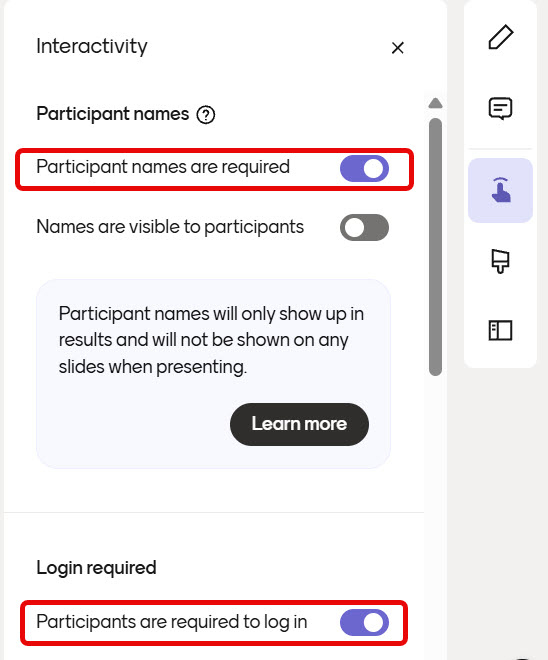

Students can still choose what name to enter when joining a quiz. However, when data is synced with the LMS it will be associated with the correct student record.
Syncing data to Canvas Gradebook
If you have set Mentimeter up as an assignment and enabled the necessary pre-requisites, you should be able to sync data to Canvas gradebook. To do that follow the steps below:
- Open the Mentimeter link from within your Canvas space.
- In Mentimeter open the results tab and use the Sync to LMS button.
- Depending on the type of questions used in your quiz you will have options to sync:
- Attendance: Track which students joined the Menti.
- Participation: Track how much a student contributed by answering or voting.
- Quiz results: Track if students answered quiz questions correctly.
Once you have used the Sync to LMS button, open Canvas grades, search for the relevant assignment and double check that grades have registered.