


Setting up Mentimeter in Canvas
Building Content 6 July 2026
You can now add Mentimeter to Canvas. This articles looks at some of the benefits and limitations of adding Mentimeter directly within Canvas. For further information on managing Mentimeter see Working with Mentimeter in Canvas.
When might I use Mentimeter directly in Canvas?
We’d recommend you only add Mentimeter directly in Canvas, if you wish to sync details of participation and or grades directly with Canvas Gradebook. For example, if you wish to record engagement within Canvas for a formative or low stakes activity that you run via Mentimeter. Using Mentimeter in Canvas, requires that students login to Canvas and open the Mentimeter link within Canvas in order to securely authenticate.
Whilst it is possible to record grades from Mentimeter to Canvas, this can only be done in an very limited capacity for selected question types, which does not include Multiple Choice questions. Therefore, for most summative assessments a Canvas quiz is still the recommended option for assessing and recording results to Canvas gradebook.
How is using Mentimeter within Canvas different?
Mentimeter must be created as an assignment within Canvas, in order to generate a gradebook column for participation or grades to be synced to.
There are additional steps for enabling your activity to be visible to students and a number of pre-requisites for syncing data to Canvas gradebook. For further information see Working with Mentimeter in Canvas.
How do I set up Mentimeter in Canvas?
You only need to connect Mentimeter to Canvas once, after that you can access your Mentimeter content from any Canvas space.
Creating Mentimeter as an assignment generates a column in Canvas gradebook. You will also need to enable participant settings in Mentimeter before launching your presentation if you wish to sync results to Canvas see Working with Mentimeter in Canvas.
To setup Mentimeter as an assignment, follow the steps below:
- Create a new assignment in Canvas.
- Give your assignment a name.
- Enter points (if you wish to have a maximum possible score).
- Submission type: Choose ‘External tool’. Then choose Find, scroll through the list of tools and choose Mentimeter.

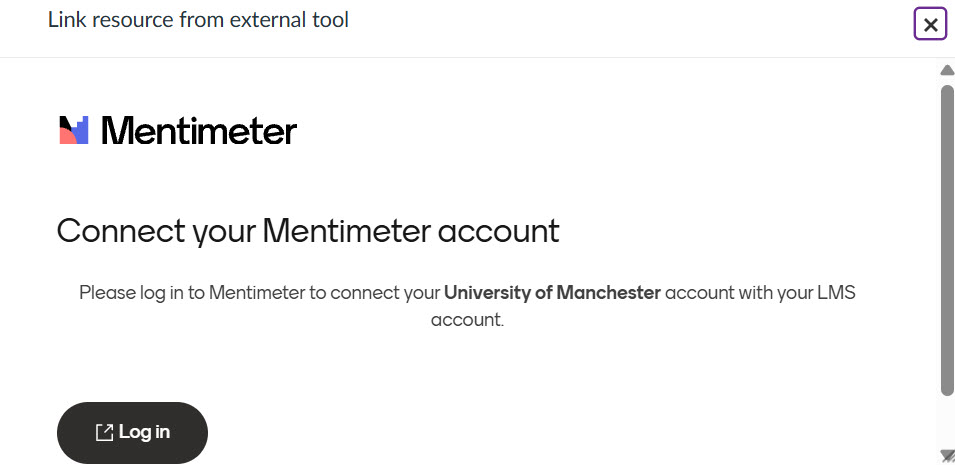
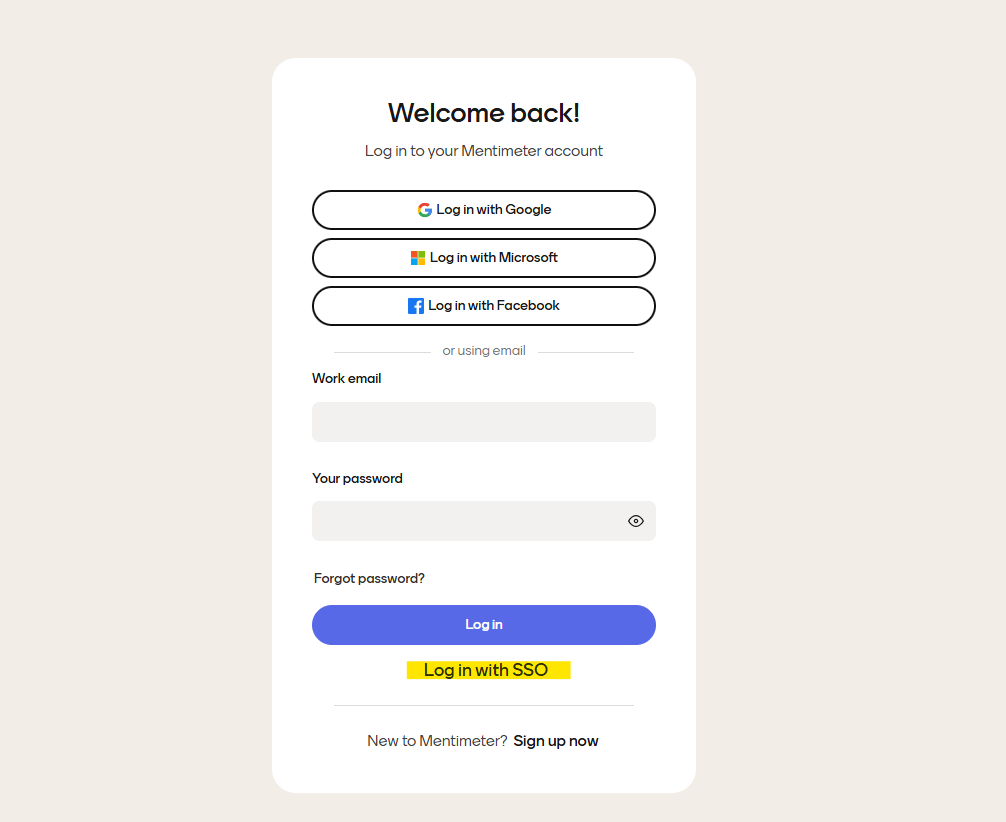
If this is your first time using Mentimeter in Canvas, a pop-up window should appear prompting you to Log in (to connect Mentimeter to Canvas). A new browser window will open where you can sign into Mentimeter. Scroll down and use the option to Log in with SSO (Single Sign On).
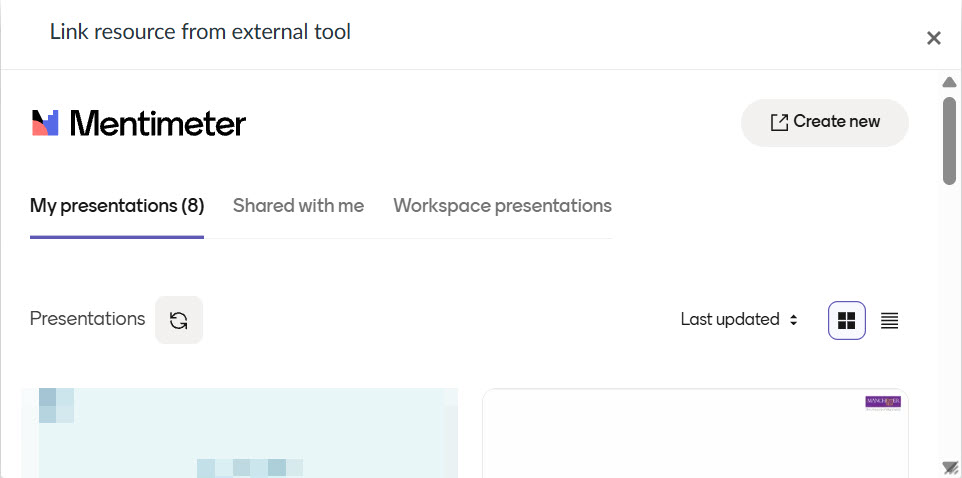
- If your account has been successfully linked, you should see a small window within the Canvas interface, showing My presentations displaying Mentimeter presentations for your account and the option to Create new.

If you select ‘Create new’ a new browser window will open with Mentimeter, allowing you to create / save a new presentation within Mentimeter. To be able to link this new presentation to Canavs, use the refresh icon next to Presentations in the My presentation window in Canvas.

- Locate the presentation you wish to insert from the My presentations window and choose Select.
- Next, choose Select button in Canvas, to navigate away from the external tool pop-up window.
- Finally, scroll down and Save the assignment.
- Your assignment link should now appear in Canvas.
- You will need to publish your assignment for it to become visible to students. For further information on student visibility check out Working with Mentimeter in Canvas.