


Moving Videos from Files to Studio
Building Content 4 March 2026
Videos should not be added to the Files area in Canvas, as they take up a significant amount of storage space, which can then prevent other staff being able to add course content. Any videos uploaded to the Files area should be downloaded, and re-added to the course space via Canvas Studio. The original video file can then be deleted from the Files section to free up space.
Find and download video
To locate and download videos from the Files area follow the instructions below:
- Open the Files menu in the relevant Canvas space.
- Use the Search files field to search by file name or alternatively search .mp4 or .mov to find all video files.
- Once you have located the File, in the Actions column select the three dots menu icon and then choose Download.
- The video should save to your device and you can typically find this in your Downloads folder on your computer.

Unfortunately, the Files area does not show which module or page a video has been added to. So to replace content, you will need to locate the module / page that the file has been added to.
Add video to a Canvas Page
To add video in a Canvas page follow the steps below:
- To see an overview of all content in a Canvas space open the Modules menu and selecting Expand All.

- Locate and open the relevant Canvas page.
- Select the Edit button to open the Rich Content Editor, which will allow you to edit the page content.

- In the content editor position the cursor where you want to insert the new video file.
- Next, select the Blue video icon in the menu to open Canvas Studio.

- Canvas Studio will open showing My Library. Choose Create and then Add Media.
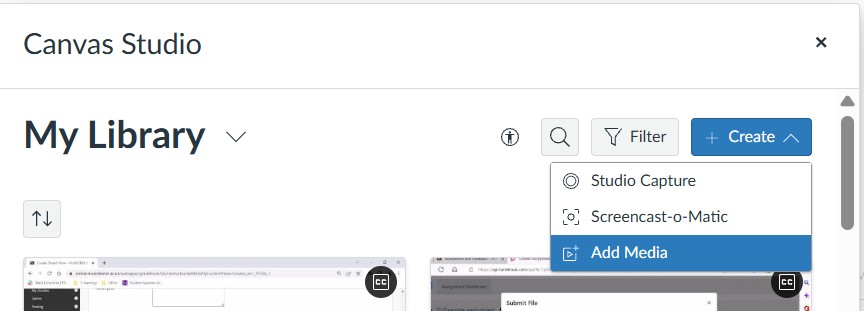
- Choose Browse Files and locate and open the relevant video file.
- In the Canvas Studio window you should see the file progress through uploading and then processing (which may take a number of minutes for larger files). Once processing is complete the video thumbnail will show the video duration in a small black rectangle in the bottom corner of the video thumbnail.
- Click on the video thumbnail to select the video you want to insert.
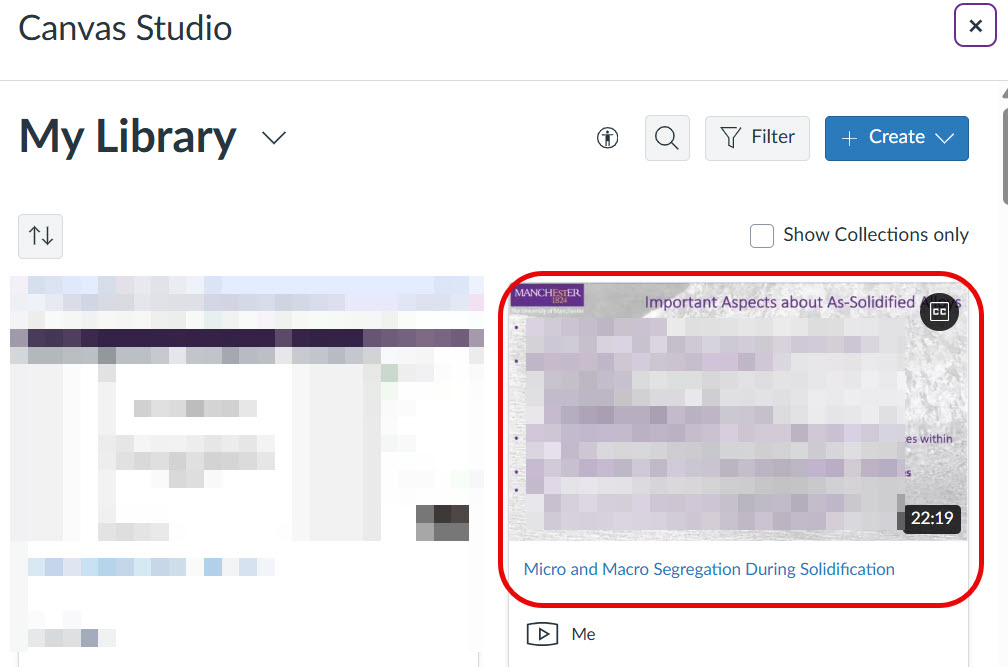
- Under Embed options switch Display Media Tabs to off (this will prevent students from being able to leave comments underneath the video).
- Next choose, Embed Media to add the video into your page.

- The video should now show embedded in the page. If you still have any hyperlinks to the old video remaining delete those hyperlinks.

- To save the changes, scroll to the bottom of the page in Canvas and choose Save to update the page.
Deleting video from Files area
Once you have re-added the video via Studio you should delete the original video file from the Files area, to free up storage space.
- Open the Files menu in the relevant Canvas space.
- Use the Search files field to search by file name.
- Once you have located the File, in the Actions column select the (…) and then choose Delete and follow any prompts on screen to delete the file.