


How to embed Padlet, Mentimeter & Microsoft Forms into Canvas
Building Content 3 December 2025
Padlet
You can embed your Padlet boards into Canvas by copying an embed code as follows:
- Navigate to Padlet and open the Padlet board that you would like to embed.
2. Click on the Share icon located towards the right-hand side of your Padlet board:

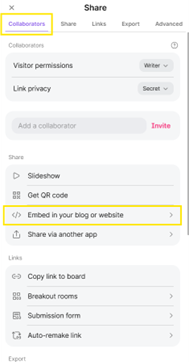
3. Click on the ‘Collaborators’ tab and then select the option ‘Embed in your blog or your website’:
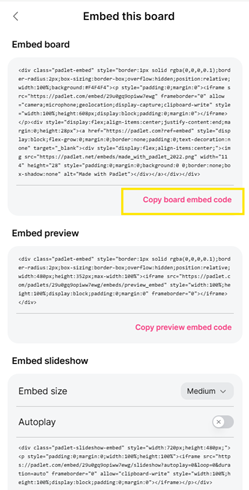
4. Copy the ‘Embed board’ code by selecting ‘Copy board embed code:
5. With the embed code now copied, open your Canvas course and navigate to the module within your course where you would like to embed your Padlet board. Your Padlet board will be embedded within a Canvas page. You can either create a new Canvas page, or open an existing page if you would like to add the Padlet board to your existing content.
6. With your Canvas page open, click on the ‘Edit’ button to edit the page:

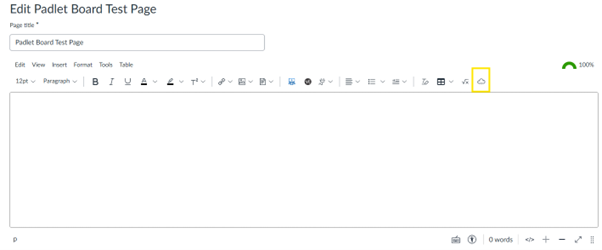
7. On the editing screen, click on the ‘Embed’ icon. The icon is usually located at the end of the formatting icons, and looks like a cloud:

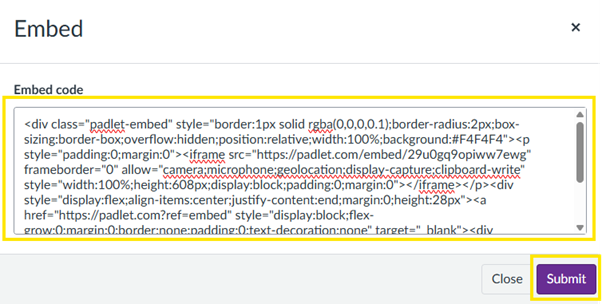
8. In the embed code box that appears, paste in the embed code that you previously copied from your Padlet board, and click on the ‘Submit’ button to close the embed code screen:
You should then see a preview of your Padlet board in the editing box:
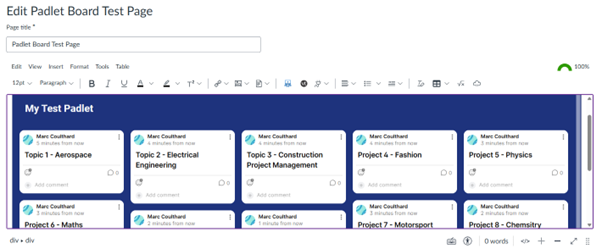
9. Scroll to the bottom of the editing page and click on ‘Save’ if you just want to save your progress, or click on ‘Save & publish’ if you would like to save your progress and publish your Padlet board so that students can access it immediately:
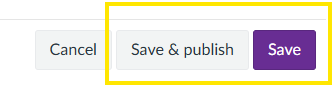
You have now successfully added your Padlet board to your Canvas module/course!
Students can interact with your embedded Padlet board in the same way as they would do if they accessed the board via a direct link to the Padlet website.
Mentimeter
You can embed your Menti slides into Canvas and see the responses from participants updating in real time.

Participants cannot submit their responses via the embedded Menti presentation in Canvas. The embed function is for viewing the results of submitted responses, both in real time and after the presentation has finished.
To submit responses, participants need to navigate to www.menti.com and enter the relevant access code for the Menti presentation. They will then be able to interact with the presentation and submit their responses.
To embed a Menti follow these steps:
Navigate to www.mentimeter.com and open the Menti slides that you would like to embed.
In the top right corner of the screen click on the ‘Share’ button:

From the share menu that appears, click on ‘Copy code’ that appears next to the ‘Embed slides’ option:
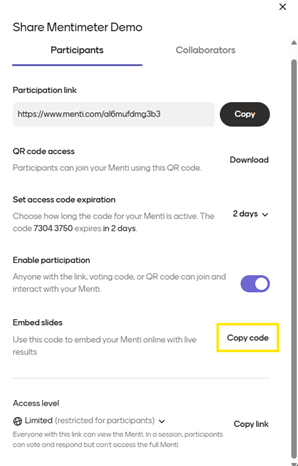
In Canvas, navigate to the module where you would like to embed your Menti.
In the example below we are adding the Menti to a Canvas page.
Open the edit menu for your Canvas page:

Click on the embed icon:
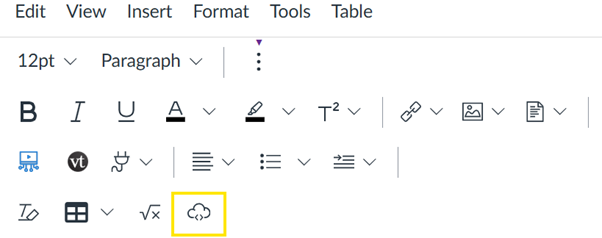
In the embed code box that appears, paste the embed code that you previously copied from Mentimeter, and then click on the ‘Submit’ button:
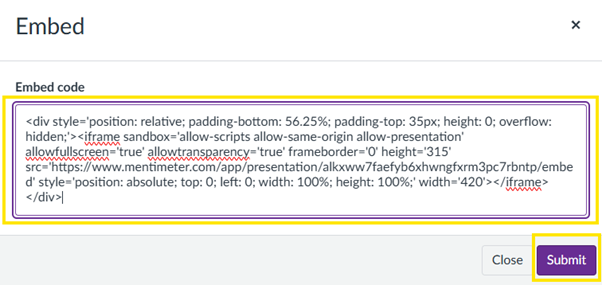
A preview of your Menti slides will now appear in Canvas.
To finish, scroll to the bottom of the edit page menu and select ‘Save’ if you just want to save your progress, or click on ‘Save & publish’ if you want to make the Menti available immediately to students on your course:

Microsoft Forms
You can embed Microsoft Forms (MS Forms) into Canvas by copying an embed code as follows:
Navigate to the MS Forms and open the form that you would like to embed.
Towards the top-right corner of the screen, select the ‘Collect responses’ button:

On the Send and collect responses screen, select the ‘Embed’ button:
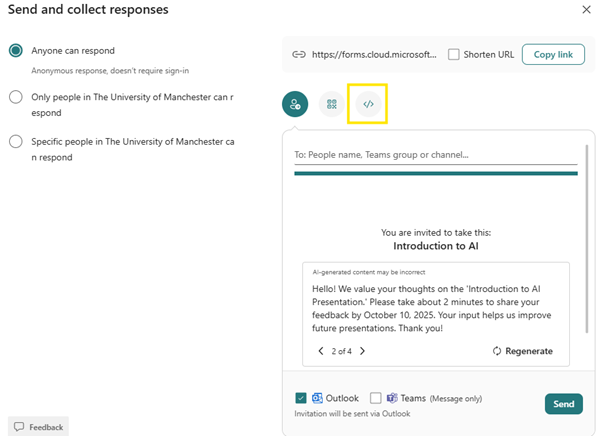
There are several different options you may wish to amend in in the ‘Send and collect responses’ screen. You can add a message to be sent to recipients who receive the Form, such as detailing why you are sending them the form. You can also choose to restrict who can access the form. Note that these options are for use if you choose to send the URL to people, and they do not apply when you embed the form.
On the embed code screen select the ‘Copy’ button to copy for embed code for the form:
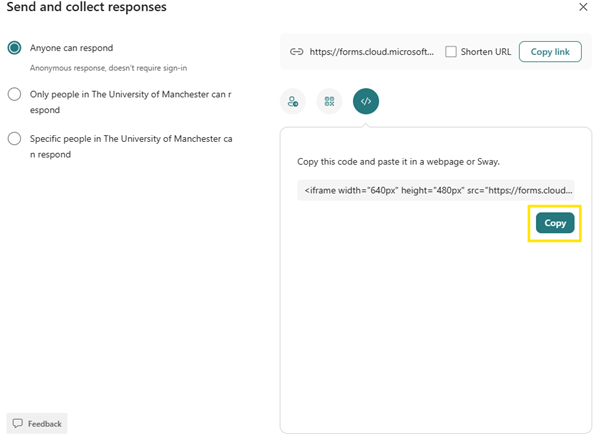
With the embed code now copied, open your Canvas course and navigate to the module within your course where you would like to embed your MS Form.
Your MS Form will be embedded within a Canvas page. You can either create a new Canvas page or open an existing page if you would like to add the Padlet board to your existing content. With your Canvas page open, click on the ‘Edit’ button to edit the page:

On the editing screen, click on the ‘Embed’ icon. The icon is usually located at the end of the formatting icons, and looks like a cloud:
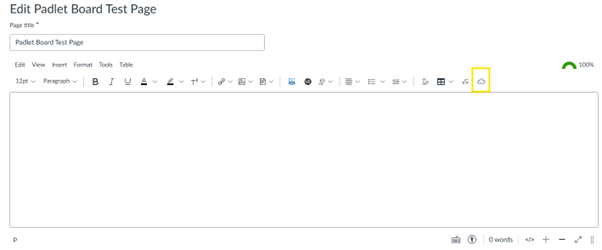

In the embed code box that appears, paste in the embed code that you previously copied from your MS Form, and click on the ‘Submit’ button to close the embed code screen:
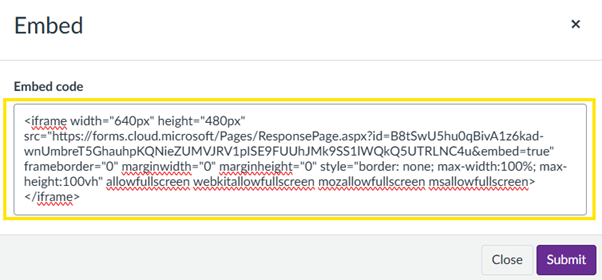
You should now see a preview of your MS Form in the editing box:
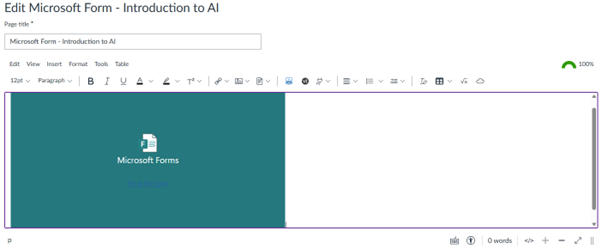
Do not be alarmed if your form does not appear to show the questions in the preview screen. They will show when you save your progress in the next step.
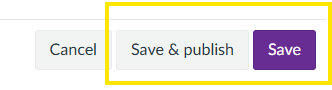
Scroll to the bottom of the editing page and click on ‘Save’ if you just want to save your progress, or click on ‘Save & publish’ if you would like to save your progress and publish your Padlet board so that students can access it immediately:
You have successfully added your MS Form to your Canvas module/course, and the form will now display correctly in an embedded format:
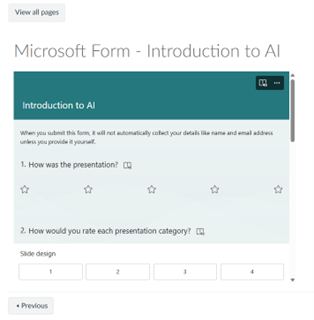
Users can interact with your embedded form in the same way as they would do if they accessed the board via a direct link to the MS Forms website.
MS Forms offers the option to restrict access to specific people within the University via email address, but this option is only applied when you share the URL. Restricting to individual users via MS Forms is not applicable to embedded content, and as such all users on your Canvas course will have access to any forms that you choose to embed.